OCR a PDF – make a scanned PDF searchable
Drop a scanned PDF or photos of the pages. We recognise the text and give you back the same pages with an invisible text layer, so you can search, select and copy.
How it works
Drop the scan
A scanned PDF or photos of the pages (JPG, PNG, WebP or TIFF) – up to 20 pages and 15 MB.
We recognise the text
In the language of this page plus English, or up to 3 languages you choose under More options. It takes about 5–10 seconds per page.
Download the searchable PDF
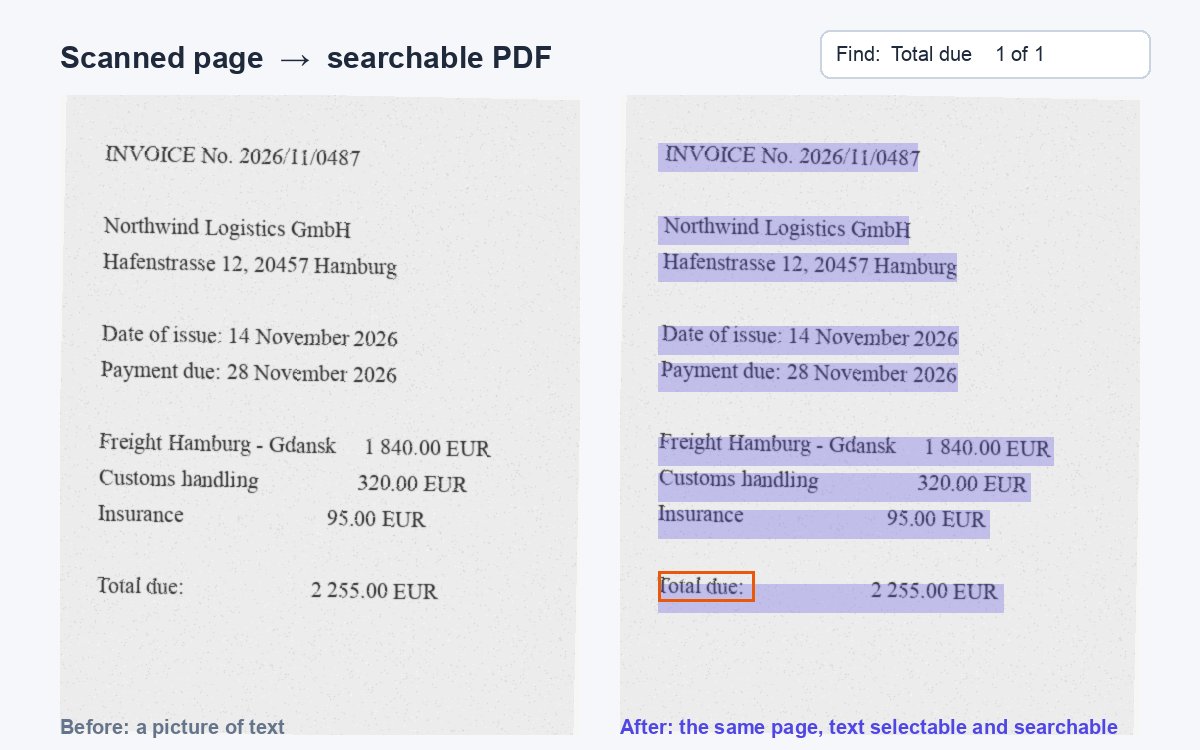
The pages look exactly the same, but now you can search, select and copy the text. Your files are deleted right after.
Text recognised. Now control who reads it.
Share the searchable PDF as a HelpRange link: see who opened it and which pages they read, stamp every page with the reader's e-mail, block downloads and revoke access any time.
Scans and phone photos are pictures of text: you cannot search them, copy a sentence or have them read aloud. OCR (optical character recognition) reads the letters in the image and adds them to the PDF, so the document becomes searchable and accessible – and ready to redact, quote or file.
What OCR does to your PDF
A scanner or a phone camera saves a page as a picture. To a computer it is just pixels: search finds nothing, you cannot copy a sentence, screen readers stay silent and redaction tools cannot find the names to black out. OCR – optical character recognition – reads the letters in the picture and adds them to the PDF as an invisible text layer placed exactly over the words. The page still looks the same, but now it behaves like a normal document.
Tips for better results
- Scan at 300 dpi; photos should be sharp, straight and evenly lit.
- Choose the right language – accents, umlauts and scripts such as Japanese or Arabic need their own language model.
- Mixed documents work: pages that already have text are left as they are.
- Handwriting is not recognised reliably; printed text is.
Next steps: black out personal data with redact PDF, make the file smaller with compress PDF or extract the pages you need with split PDF.
OCR a PDF – make a scanned PDF searchable – questions
Is it free?
Yes – no sign-up. Up to 20 pages and 15 MB per document, 5 documents a day.
Which languages are supported?
More than 30, including English, German, French, Spanish, Polish, Japanese, Chinese, Korean, Arabic and Russian. The language of this page and English are selected for you; choose up to 3 under More options.
Does OCR change how the pages look?
No. The page images stay exactly as they were; the recognised text is added as an invisible layer behind them.
Do you keep my files?
No. The upload is deleted as soon as the text is recognised, and the result a few minutes after you download it – at the latest after 30 minutes.
What if my PDF already has text?
Pages that already contain text are left as they are; only the scanned pages are recognised.