Scan to PDF with your phone
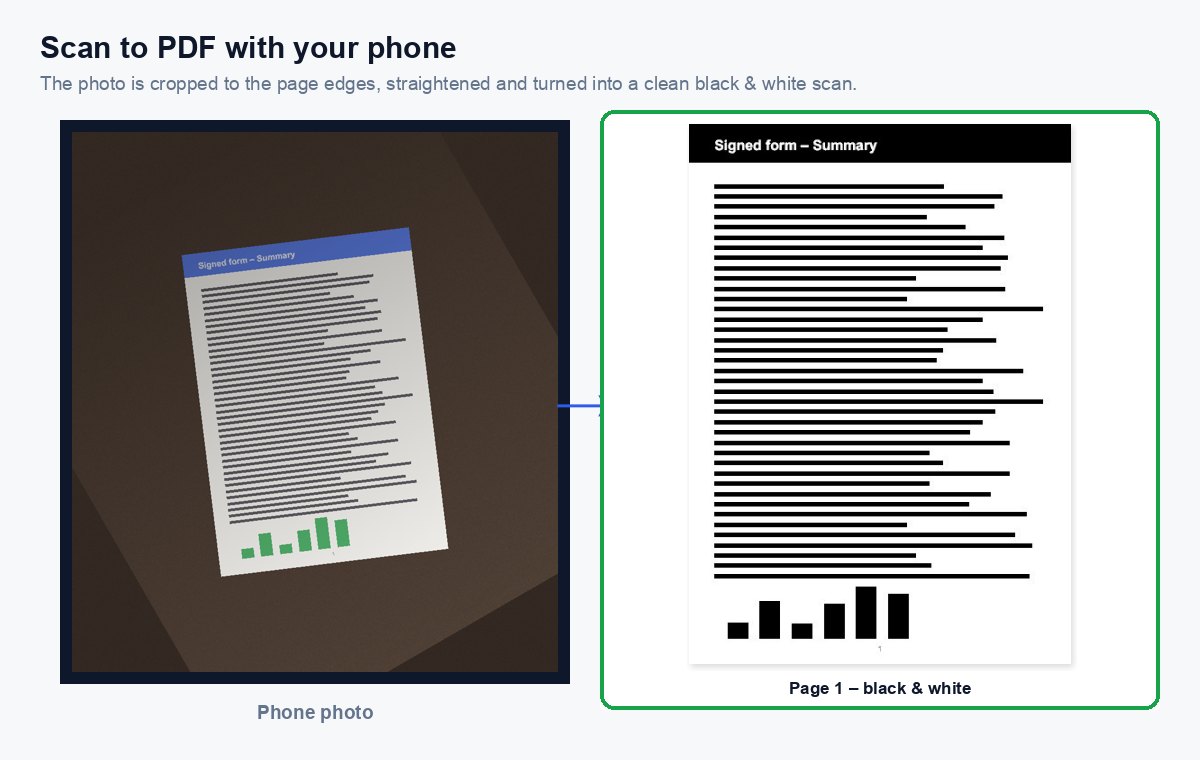
Take a photo of each page with your phone camera – the page is cropped to its edges and cleaned up like a scan – then download one PDF.
How it works
Open this page on your phone
On a computer, scan the QR code next to the tool – no app to install.
Take a photo of each page
The page is found and cropped automatically; drag the four corners if needed.
Choose the look
Black & white like a scanner, greyscale or colour – applied to every page.
Create the PDF
Reorder or delete pages, then one tap builds the PDF and downloads it.
Share scans and photos as one tracked link
Upload images or PDFs to HelpRange and share them as a single link with view-only access, watermark and page-by-page analytics.
A phone camera is all the scanner most people need for receipts, signed forms, ID documents, notes and letters. Cropping to the page edges and a high-contrast black & white filter make a photo look like a flatbed scan – smaller, readable and fine to print or send.
How to get a scan-quality photo
- Put the page on a dark, plain surface – a table or a folder – so its edges stand out.
- Use daylight or a bright room; avoid the flash, which leaves a glare spot.
- Hold the phone flat above the middle of the page and fill most of the frame with it.
- Check the corners: if the automatic crop missed one, tap the crop button and drag the circle to the corner.
The black & white look removes shadows and the grey of the paper, so text and signatures come out crisp and the file stays small. Choose greyscale for photos and pencil, colour for stamps, highlighted text and coloured forms.
What happens with the photos
Finding the page, cropping, straightening and the scan filter all run in your browser. Only the finished pages are sent to build the PDF; they are deleted right after processing, and the PDF after 30 minutes or at once with “Delete now”. Need the text to be searchable or copyable? Run the PDF through OCR. To combine it with other documents use merge; to sign it, sign PDF.
Scan to PDF with your phone – questions
Do I need to install an app?
No. Open this page on your phone and tap “Take a photo” – the browser opens the camera. On a computer, open the link or scan the QR code shown next to the tool to continue on your phone.
How do I get a clean scan?
Put the page on a dark, even surface, hold the phone straight above it in good light, and check the four corner handles – drag them to the page corners if the automatic crop missed one.
Where are the photos processed?
Cropping and the scan filter run in your browser. Only the finished pages are uploaded to build the PDF; they are deleted right after processing and the PDF after 30 minutes – or at once with “Delete now”.
Does it work on iPhone and Android?
Yes – in Safari, Chrome and other current browsers. The camera opens through the browser’s own photo button; you can also pick photos you already took.