Delete pages from a PDF
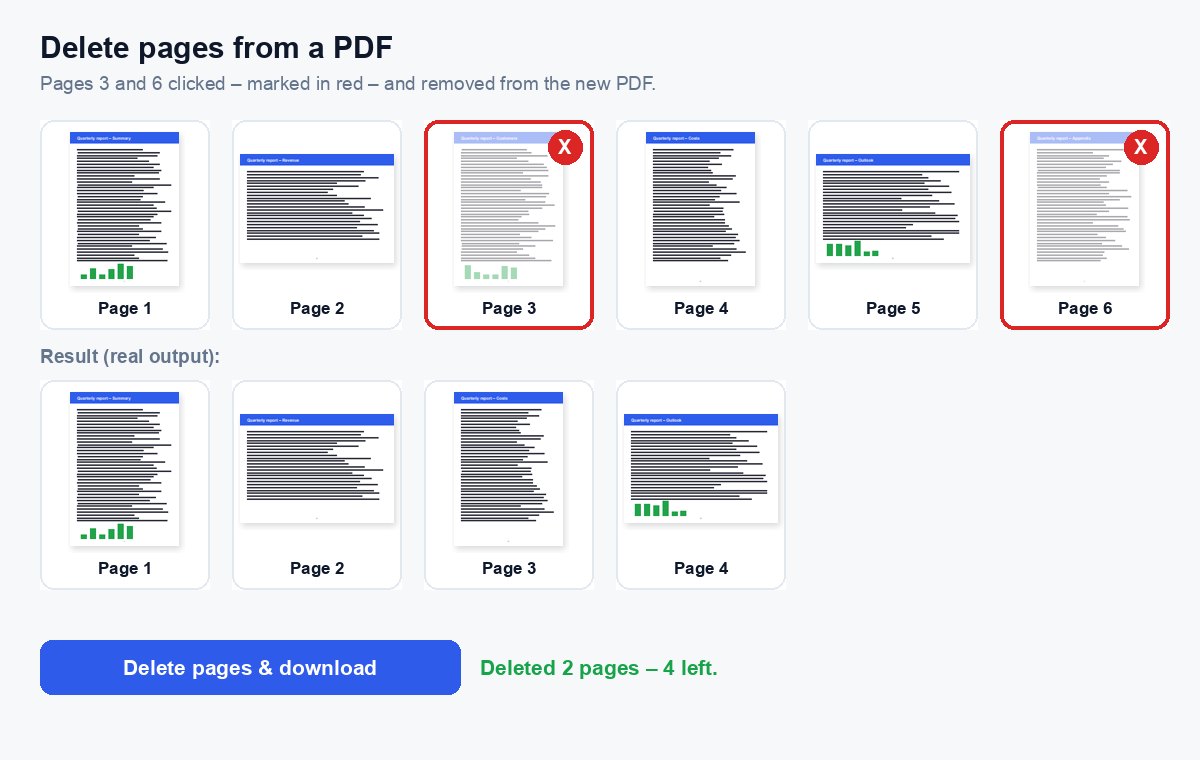
Click the pages you want to remove – blank pages, old drafts, the cover – and download the PDF without them.
How it works
Choose your PDF
Every page appears as a thumbnail, drawn in your browser.
Click the pages to delete
A red mark shows what goes – or type the page numbers, e.g. 2, 5-7.
Download
A new PDF without those pages – the text, links and pictures of the other pages stay exactly as they were.
Send just the pages that matter – and see who read them
Share the extracted part as a HelpRange link: page-by-page analytics, an alert when it is opened, a watermark with the reader's e-mail and access you can revoke.
Removing pages is the quickest way to send a clean document: drop the empty back of a scan, the internal cover sheet, or the draft annex before a file goes to a client, an investor or a court.
When to delete pages
- The empty backs of a two-sided scan.
- An internal cover sheet, routing slip or fax header before the document goes out.
- Old annexes or draft pages that were replaced.
- Pages a recipient must not see – a price list in a proposal sent to a partner, for example.
Deleted pages are gone from the new file: their text and pictures are not hidden, they are left out. Links in other pages that pointed to them stop working, and bookmarks to them are removed.
Keep or remove?
If you need the opposite – keep three pages and drop the rest – extract pages is quicker. To remove only a paragraph or a number on a page, use redaction instead: it deletes the text under a black box without removing the page. And if the document still has to be shared after the clean-up, a protected link shows you who read which page.
Delete pages from a PDF – questions
How do I choose the pages?
Click them in the page preview – a red mark shows they will be removed – or type the page numbers, e.g. 2, 5-7.
Is the original changed?
No. You download a new PDF without the chosen pages; your original file stays as it is on your computer.
Do you keep my file?
Only for a short time: uploads are deleted right after processing, the result after 30 minutes – or at once with “Delete now”.
Can I undo the deletion?
Your original file is not changed – choose it again to start over. The new PDF without the pages is a separate file.