Extract pages from a PDF
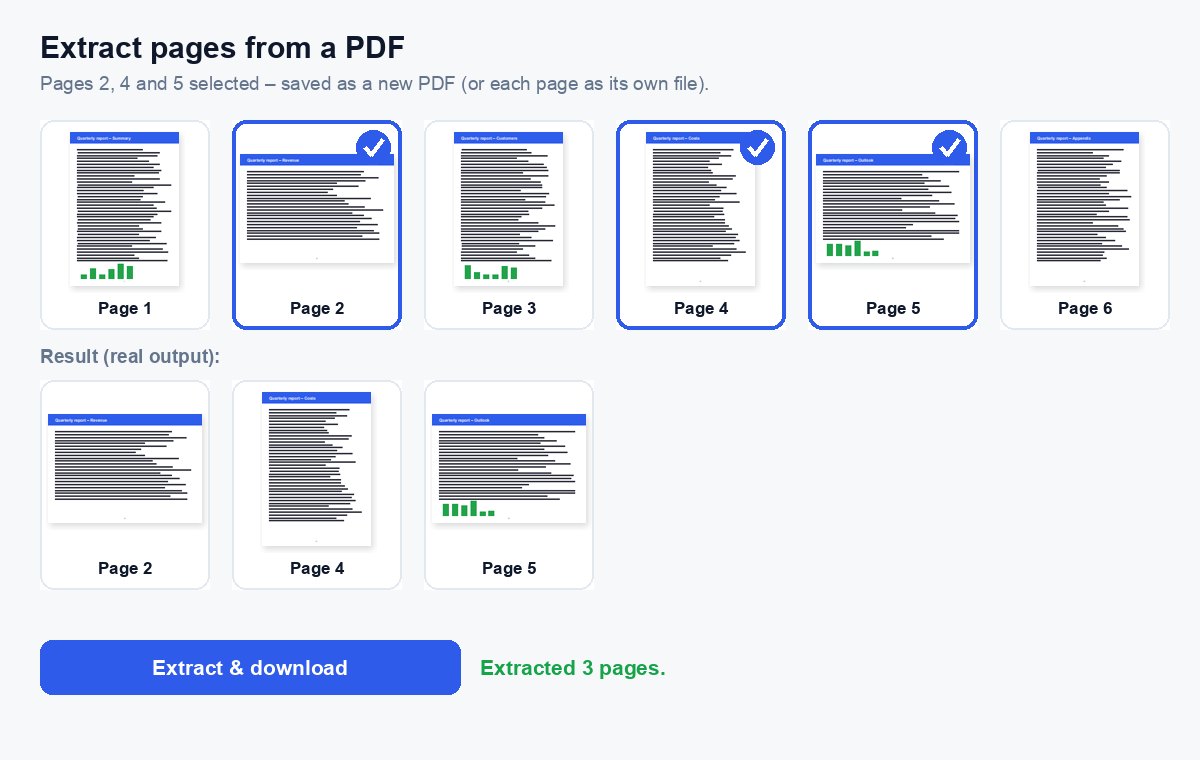
Pick the pages you need and save them as a new PDF – together in one file, or each page on its own.
How it works
Choose your PDF
Every page appears as a thumbnail, drawn in your browser.
Click the pages you need
Or type them, e.g. 1-3, 8 – the order you type is the order in the new PDF.
Download
One PDF with the chosen pages, or each page as its own PDF in a ZIP.
Send only what is needed
Share the extracted pages as a protected link and see who opened which page.
Send just the pages that matter – and see who read them
Share the extracted part as a HelpRange link: page-by-page analytics, an alert when it is opened, a watermark with the reader's e-mail and access you can revoke.
Extracting pages lets you send exactly what someone needs: the signed signature page of a contract, two slides of a deck, the one bank statement page a landlord asked for – without the rest of the document.
Extract or split?
Split PDF cuts the whole document into parts – every page ends up in one of the files. Extract takes only what you pick and leaves the rest out, which is what you usually want when someone asks for “just the signature page” or “the two slides with the numbers”.
Typed pages follow your order: 8, 1-3 puts page 8 first. A page listed twice is used once.
Typical uses
- Send the signed signature page of a contract without the whole contract.
- Pull one bank statement month or one invoice out of a long export.
- Make a short teaser from a long pitch deck before a first meeting.
- Save each page of a scanned batch as its own PDF (choose “Each page as its own PDF”).
To combine extracted pages with other files afterwards, use merge or organize.
Extract pages from a PDF – questions
How is this different from splitting?
Split cuts the whole PDF into parts. Extract takes only the pages you pick – in the order you pick them – and leaves the rest out.
Can I get every chosen page as its own file?
Yes – under “More options” choose “Each page as its own PDF”; you get a ZIP with one PDF per page.
Do you keep my file?
Only for a short time: uploads are deleted right after processing, the result after 30 minutes – or at once with “Delete now”.
Are links and text kept?
Yes – the extracted pages are copied as they are, with their text, pictures and links; only the pages you did not choose are left out.