Add page numbers to a PDF
Number every page – choose the format, the position and the first number.
How it works
Choose your PDF
Up to 10 MB and 200 pages.
Pick the format
“Page 1 of 10”, “1”, “1 / 10” – or your own text with {n} and {total}.
Choose position and first number
Bottom centre is the usual choice; start at 3 if the PDF continues another document.
Download the numbered PDF
Every page is numbered in the position you chose.
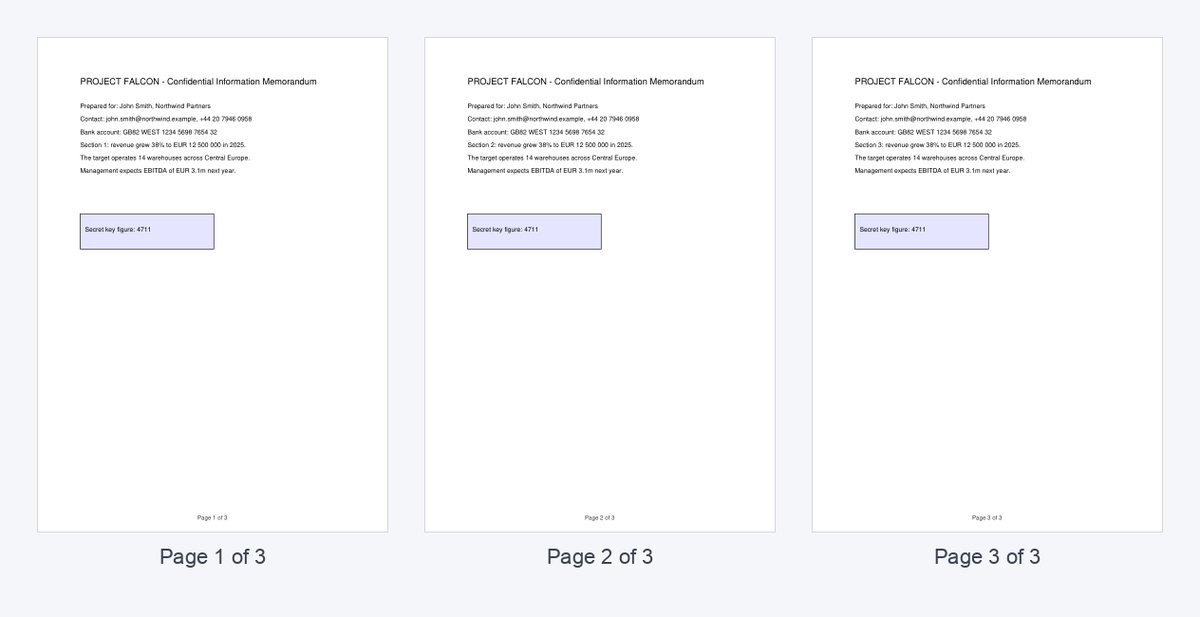
Know who reads page 7
Share the numbered PDF as a HelpRange link and see time spent on every page, by every reader, with an alert when they open it.
Page numbers make long documents easier to discuss ("see page 14") and are expected in contracts, theses, reports and due diligence documents.
How to add page numbers to a PDF online (free)
- Choose your PDF above (up to the upload limit; files are deleted within 30 minutes).
- Pick the format:
Page {n} of {total},{n}or{n}/{total}– or type your own text, e.g.Exhibit A – {n}. - Choose the position (bottom centre is the usual choice for reports and contracts) and the first number.
- Click the button and download the numbered PDF.
How to add page numbers in Adobe Acrobat
- Open the PDF in Acrobat Pro and choose Edit PDF.
- Select Header & Footer → Add.
- Click in the footer box where the number should go and press Insert Page Number; use Page Number and Date Format for “1” or “1 of n”.
- Use Page Range Options to skip a cover page, then click OK and save.
Acrobat Reader (the free app) cannot add page numbers – you need Acrobat Pro or a free online tool such as the one above.
How to add page numbers to a PDF on a Mac
Preview cannot number pages. The simplest free ways are this online tool, or – if you have the original Word or Pages file – inserting page numbers there (Insert → Page Number) and exporting a new PDF.
How to add page numbers before exporting from Word or Google Docs
- Word: Insert → Page Number → Bottom of Page, then File → Save As → PDF. Use “Different First Page” to leave the cover unnumbered.
- Google Docs: Insert → Page numbers, then File → Download → PDF document.
If you only have the PDF, number it here instead of rebuilding the document.
Page numbering tips for contracts, reports and data rooms
- Use “Page 1 of 10” for contracts and anything signed – a missing page is obvious.
- For appendices, start numbering where the previous document ended, or add a prefix such as “Annex 2 – {n}”.
- In a due diligence data room, number documents after the final version is ready, so references in the Q&A (“see page 14”) stay valid.
- Need to share the numbered PDF securely? Send it as a protected link with a watermark and see who read which page.
Add page numbers to a PDF – questions
Which formats can I use?
Any text with {n} for the page number and {total} for the page count, e.g. "Page {n} of {total}", "{n}" or "{n}/{total}".
How do I add page numbers to a PDF for free?
Upload the PDF to this tool, choose the format and position and download the numbered file – no sign-up, no watermark from us.
Can Adobe Acrobat Reader add page numbers?
No – the free Reader cannot edit PDFs. Acrobat Pro can (Edit PDF → Header & Footer), or use this free online tool.
Can I skip the cover page?
Set the first number so the numbering matches your document; to leave the cover unnumbered, split it off first with the free split PDF tool and merge it back afterwards.
Can I start from a different number?
Yes – set the first number, e.g. 3 if the PDF continues another document.
Do you keep my file?
Only for a short time: uploads are deleted right after processing, the result after 30 minutes – or at once with “Delete now”.