Add a header and footer to a PDF
Stamp a header and footer on every page – your text, page numbers and the date – or mark the document Confidential, Draft or Copy with one click.
How it works
Drop the PDF
Up to the size limit shown next to the drop zone.
Click a stamp – or type your text
Confidential, Draft or Copy in one click; or your own header and footer, left, centre or right.
Download
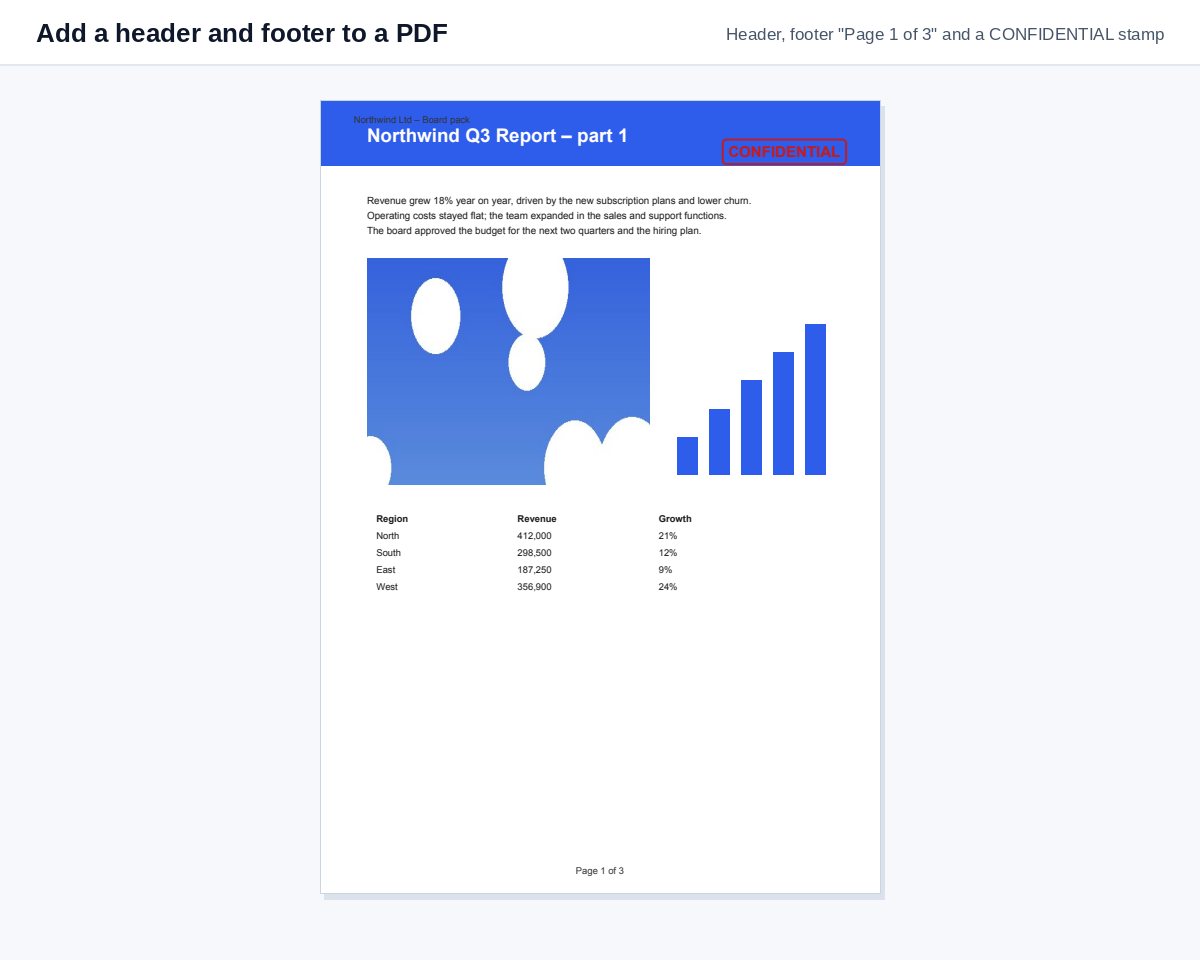
Every page carries the header, footer and stamp; the content is not changed.
Know who reads page 7
Share the numbered PDF as a HelpRange link and see time spent on every page, by every reader, with an alert when they open it.
Headers and footers carry the information a printed page needs: who it belongs to, how confidential it is, its date and page number. Adding them to a finished PDF saves going back to the original Word file – and a visible "Confidential" stamp reminds every reader how to treat the document.
Examples
- Footer centre:
Page {n} of {total}– page numbers on every page. - Header left:
ACME Ltd – Board pack, header right:{date}. - Footer left:
{file}– the file name on every printed page. - Stamp Confidential on a term sheet, Draft on a version for comments, Copy on a scan you hand out.
Skip a cover page by typing 2- under More options → Pages.
Header, page numbers or Bates numbers?
For page numbers only, Add page numbers is the shortest way. For legal productions where every page needs a unique ID across many files, use Bates numbering. A visible stamp marks the document; a personal watermark also shows whose copy it is.
Example: a board pack
Type “Board meeting – 14 November” in the header on the left, {date} on the right and Page {n} of {total} in the footer, then download. Every page of the merged pack now shows where it belongs, even when someone prints only a few pages.
Add a header and footer to a PDF – questions
Which placeholders can I use?
{n} for the page number, {total} for the number of pages, {date} for today's date and {file} for the file name – e.g. "Page {n} of {total}".
Can I skip the cover page?
Yes – under More options type the pages to stamp, e.g. 2- for every page from page 2.
Do you keep my file?
Only for a short time: uploads are deleted right after processing, the result after 30 minutes – or at once with “Delete now”.
Is the stamp translated?
Yes – on the page in another language the stamp is written in that language, e.g. POUFNE on the Polish page.