PDF to Excel converter
Drop a PDF with tables and download them as an Excel workbook – one sheet per table, with a preview first. Works with scanned pages too.
How it works
Drop the PDF
Up to 10 pages and 10 MB – bank statements, price lists, financial statements, reports.
Check the preview
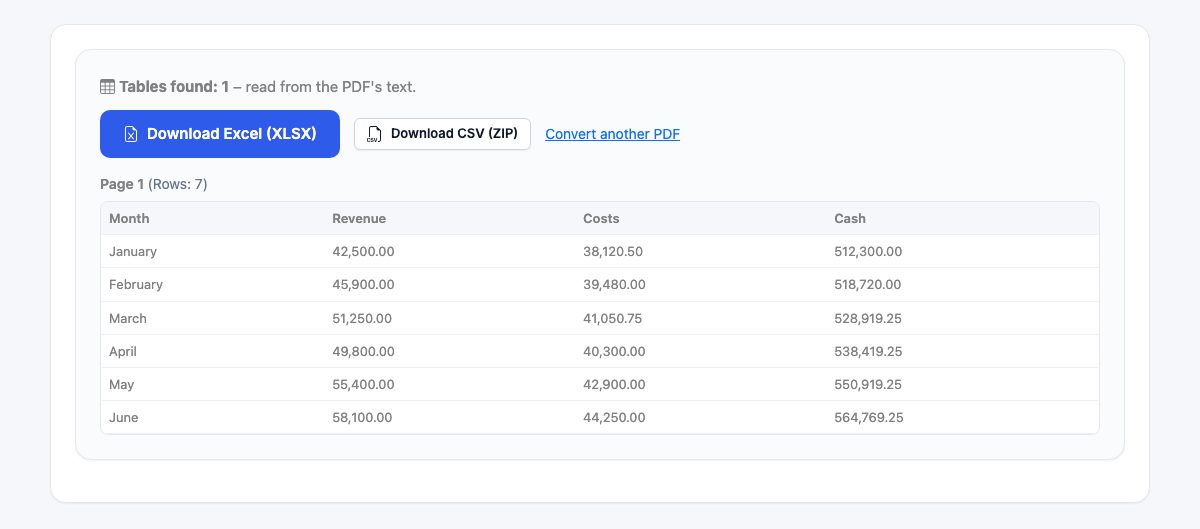
Every table found is shown before you download, so you see what you get.
Download Excel
One sheet per table, numbers as numbers – or CSV files in a ZIP.
Share the spreadsheet as a view-only link
Upload the Excel file to HelpRange and send one link: it opens in the browser, the reader's e-mail is watermarked on every sheet, downloads can be blocked and you see who opened it.
Copying a table out of a PDF usually ends with every row in one cell. Converting it to a spreadsheet keeps the rows and columns, turns numbers into real numbers you can sum, and saves retyping bank statements, price lists, financial statements and reports.
How the conversion works
Most PDFs created by software contain the text with its position on the page. The converter groups the characters into words, lines and columns and recognises tables where several lines share the same column positions – without AI, in a few seconds. Scanned PDFs and photos of documents have no text layer: for those, the page images are read by AI, which returns the tables row by row. Either way you see the tables before you download them.
Tips for clean tables
- Use the original PDF from the bank or the accounting system rather than a scan whenever you can – it is faster and exact.
- Amounts such as 1,234.50, (1,234) and 12% become numbers in Excel, so you can sum and sort them; codes with leading zeros stay text.
- Tables without lines and with uneven columns are the hardest – check the preview and fix the few cells in Excel.
- Need the opposite? Turn a spreadsheet into a view-only link with Share Excel online, or a Word file into a PDF with Word to PDF.
The file is processed in memory and not stored. Scanned pages count toward a limit of three AI conversions a day per person.
PDF to Excel converter – questions
Does it work with scanned PDFs?
Yes – when a page has no text layer the AI reads the table from the page image (3 scanned conversions a day per person). PDFs with text are converted without AI and without that limit.
How large can the PDF be?
Up to 10 pages and 10 MB per file.
Is my file stored?
No – the PDF is processed in memory and not stored. Scanned pages are sent to the AI only to read the tables.
Why are some cells merged or split?
Tables without lines and with uneven columns are hard to read exactly – check the preview, and fix the few cells in Excel.
Which PDFs work best?
PDFs exported from accounting software, banks and spreadsheets – their tables are converted exactly and without AI.