WebP to PDF converter
Saved images from a website as .webp? Turn them into a PDF that opens everywhere – one or many images, each on its own page.
How it works
Choose the WebP images
Drop one or several .webp files saved from websites.
Order them
Drag the cards into the order you want the pages.
Create the PDF
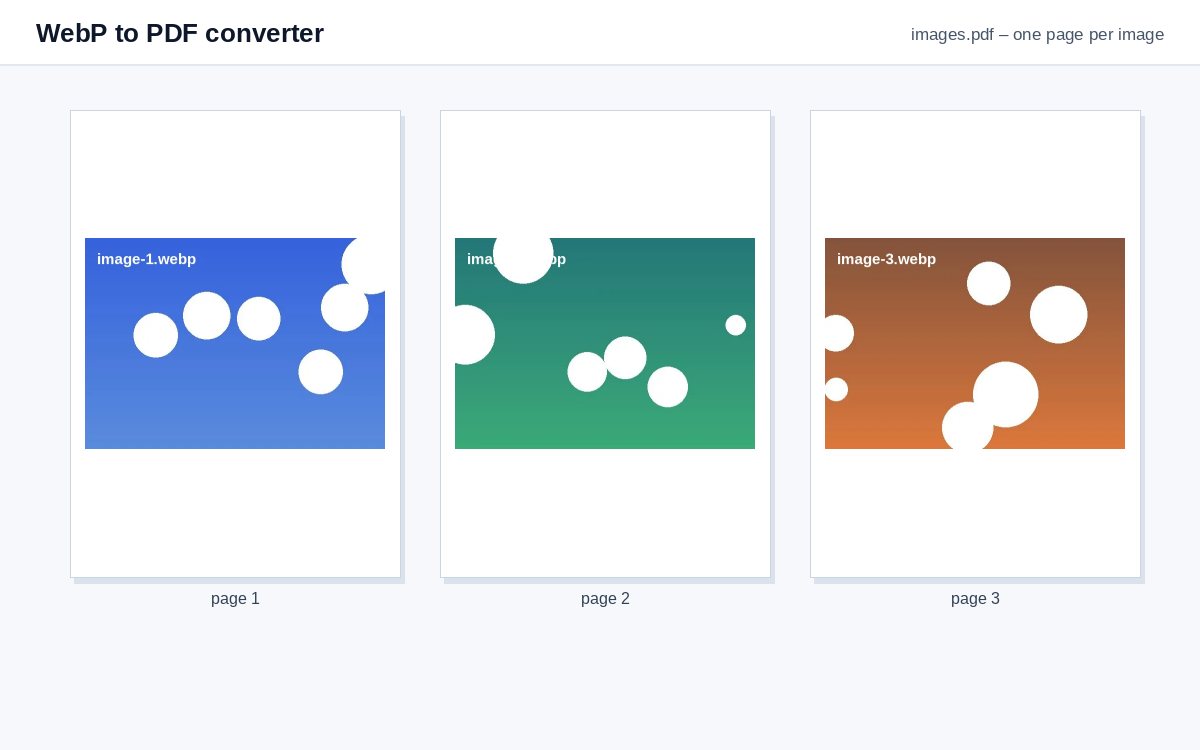
Each image becomes one page – at its own size or centred on A4.
Share scans and photos as one tracked link
Upload images or PDFs to HelpRange and share them as a single link with view-only access, watermark and page-by-page analytics.
Images saved from websites are often WebP. Converting them to PDF is the easiest way to print them, attach them to an application or keep a product page, receipt or infographic as a document. Each image becomes one page, so a series of saved images turns into one document you can print or attach.
Why WebP files cause trouble
WebP makes websites fast, so most images you save from a browser today are .webp files. Many desktop programs, printers, upload forms and older phones still cannot open them. A PDF opens everywhere and keeps several images together in one file – handy for receipts, product pages, tickets and infographics.
Tips
- Choose "A4 pages with margins" under More options when you want to print.
- Animated WebP: the first frame is used.
- Need searchable text from a screenshot? Run the PDF through OCR.
Example: keeping an online receipt
A booking confirmation and two receipts were saved from a website as .webp images, and the expense system only accepts PDF. Drop the three images, choose A4 pages under More options and create the PDF: one printable document with three pages that the expense system, your accountant and any printer accept. Product photos, infographics and screenshots of chat messages saved from the browser work the same way.
WebP to PDF converter – questions
What is a WebP file?
An image format by Google that most websites use today. Browsers open it, but many programs, printers and upload forms do not – a PDF opens everywhere.
Are animated WebP images supported?
The first frame of an animation becomes the page.
Do you keep my files?
Only for a short time: uploads are deleted right after processing, the result after 30 minutes – or at once with “Delete now”.
Is the image quality kept?
Yes – the decoded image is embedded without loss; the PDF can be larger than the WebP file because WebP compresses very strongly.