PDF to CSV converter
Drop a PDF with tables and download them as CSV – one file per table, ready for Excel, Google Sheets or an import.
How it works
Drop the PDF
A bank statement, price list or report with tables – the conversion starts at once.
Tables are found
Rows and columns are recognised from the position of the text on the page – no AI, a few seconds.
Download the CSV
One table: a .csv file; several: a ZIP with one CSV per table, named after its page.
Share the spreadsheet as a view-only link
Upload the Excel file to HelpRange and send one link: it opens in the browser, the reader's e-mail is watermarked on every sheet, downloads can be blocked and you see who opened it.
CSV is the simplest table format: every spreadsheet, database, accounting system and script can read it. Converting a bank statement, price list or report from PDF to CSV saves retyping the numbers and keeps rows and columns where they belong.
CSV or Excel?
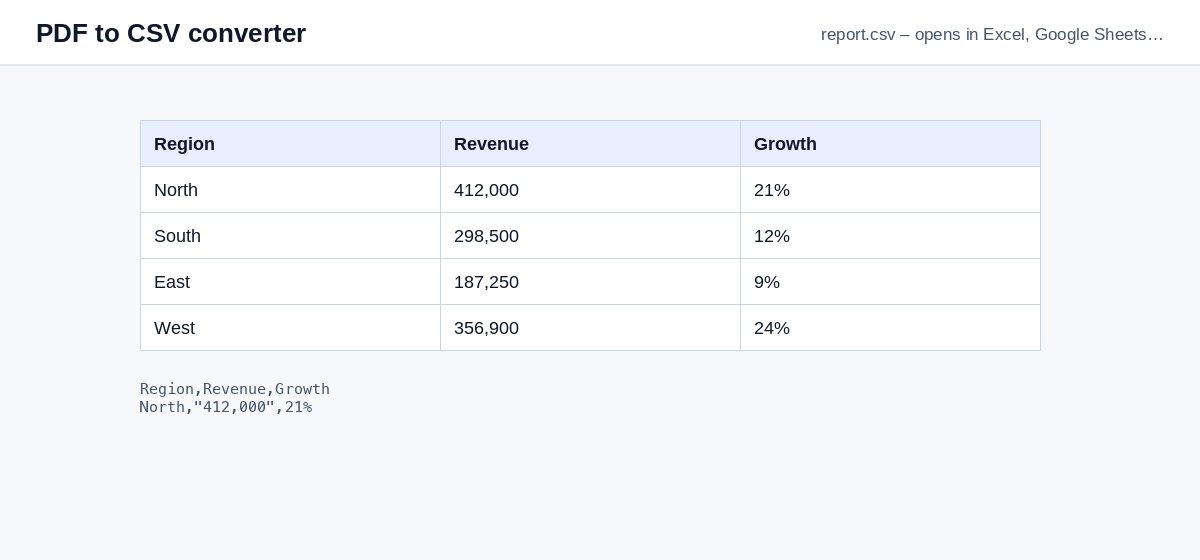
CSV is plain text with one row per line and commas between the cells – every spreadsheet, database and accounting import accepts it. The files are UTF-8 with a byte-order mark, so Excel shows accents and currency symbols correctly when you double-click them.
Want formatted sheets with numbers as numbers, a preview before downloading and scanned pages read by AI? Use PDF to Excel.
If no table is found
- A scanned PDF has no text to read – run OCR first or use PDF to Excel.
- Text that is not arranged in columns is not a table – PDF to text gives you all of it.
Example: a bank statement
A three-page bank statement PDF has one transaction table per page. Drop it here and you get a ZIP with statement-page-1.csv, -page-2.csv and -page-3.csv. Open them in Excel or Google Sheets, or import them into your accounting software – dates, descriptions and amounts stay in their own columns.
PDF to CSV converter – questions
What if the PDF has several tables?
Each table becomes its own CSV file, named after its page, and you get them together in a ZIP.
Does it work with scanned PDFs?
No – CSV conversion reads the text of the PDF. For scans use PDF to Excel, which reads scanned tables with AI, or run OCR first.
Do you keep my file?
Only for a short time: uploads are deleted right after processing, the result after 30 minutes – or at once with “Delete now”.
Which separator do the CSV files use?
A comma, with quotes around cells that contain commas – the standard format every program reads.