Edit PDF metadata
Drop a PDF to see its title, author, subject and keywords – change what you want and download the updated file.
How it works
Drop the PDF
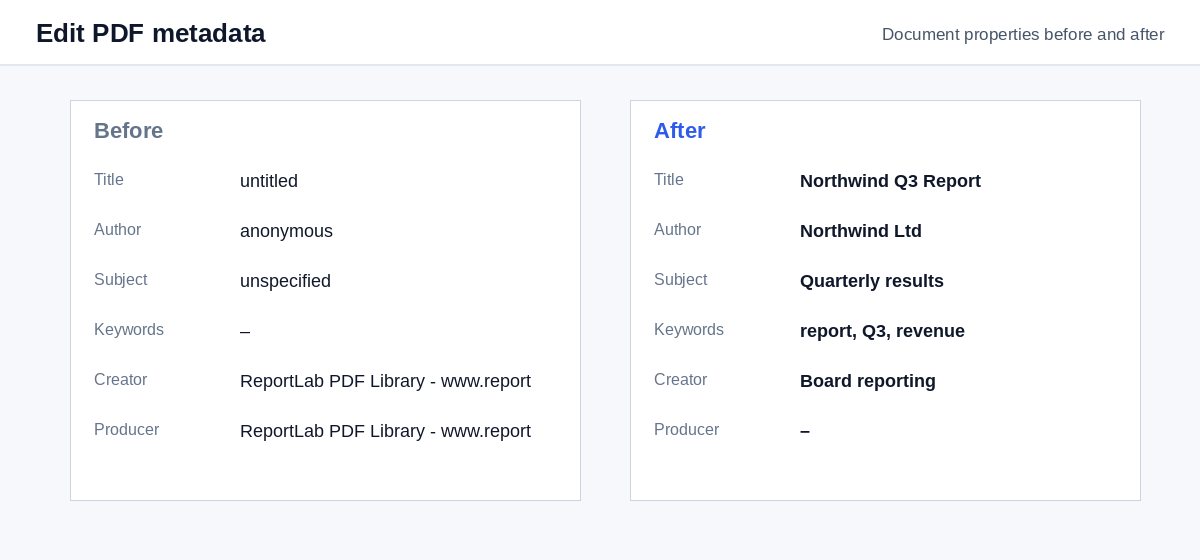
Its current title, author, subject and keywords appear in the form at once.
Change the fields
Type the new values; an empty field removes that value.
Save and download
The pages stay exactly as they were – only the document information changes.
Clean metadata is step one. Controlling who reads the file is step two.
HelpRange links verify the reader's e-mail, watermark every page and can be revoked – and show you who opened the document and which pages they read.
Every PDF carries a few lines of document information. The title is shown in browser tabs and search results, the author and keywords are used by document systems and search. Set them correctly before you publish a PDF on a website or send it to a client.
What each field is for
- Title – shown in browser tabs, PDF readers and Google results instead of the file name.
- Author – a person or your company name.
- Subject and Keywords – used by document systems and desktop search.
- Creator and Producer – the programs that made the PDF; you can replace or clear them.
The extended XMP copy of the metadata is removed, so every viewer shows your new values.
Publishing a PDF on your website
Google shows the PDF title in search results. Set a clear title and subject before you upload a white paper, price list or brochure. To remove all hidden information instead, use Remove PDF metadata; for comments, attachments and scripts, the PDF cleaner.
Example: a brochure for the website
A brochure exported from a design tool has the title “Untitled-3” and the designer as the author. Drop it here, type the product name as the title, your company as the author and three keywords, and save. Browser tabs and search results now show the product name.
Edit PDF metadata – questions
Why does the title matter?
Browsers, search engines and PDF readers show the document title instead of the file name – "Final_v7_scan.pdf" or "Microsoft Word - Document1" looks careless on a proposal or a web page.
Is the content of the PDF changed?
No – only the document information. The pages stay exactly as they are.
Do you keep my file?
Only for a short time: uploads are deleted right after processing, the result after 30 minutes – or at once with “Delete now”.
Are the creation and modification dates changed?
The creation date is kept; the modification date becomes the moment you save.