Merge Excel files
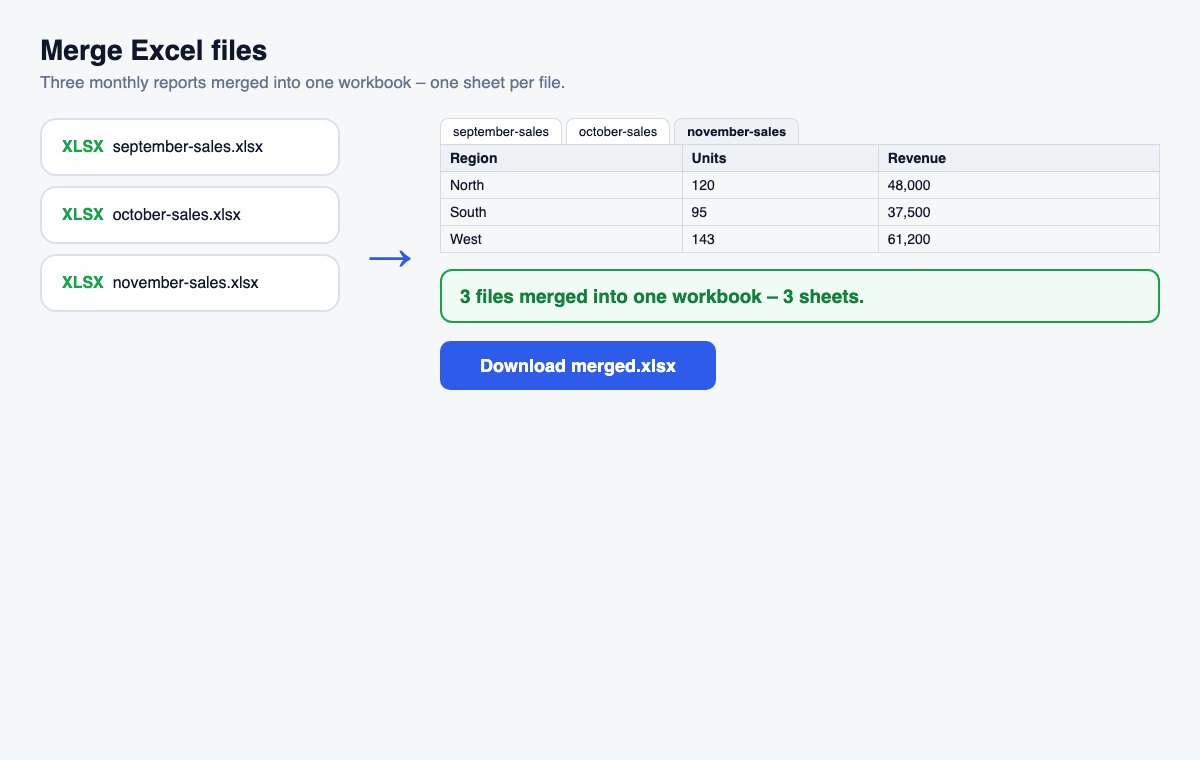
Combine several Excel or CSV files into one workbook – each file on its own sheet, or all rows below each other in one sheet.
How it works
Choose the files
Excel workbooks (.xlsx) and CSV files, in any mix – drag the cards to change the order.
Pick how to merge
Each sheet on its own sheet (default), or all rows in one sheet with a column naming the source file.
Merge & download
One workbook with everything in it.
Skip the conversion: share Office files directly
HelpRange opens Word, PowerPoint and Excel files in the browser with page analytics and watermarks – upload the original and send one secure link.
Monthly reports from different people, exports from several shops or one CSV per region are much easier to analyse in one workbook. Merging them by hand means copying sheet by sheet; here it is one step, and the source column keeps track of where each row came from.
Stacking rows from many files
“All rows in one sheet” works best when the files have the same columns in the same order – exports of the same report for different months, shops or regions. The header row of the first file is kept once; the same header in the other files is skipped. The “Source file” column lets you filter or build a pivot table by file afterwards.
Before you merge
Check that the files open in Excel without errors and that the sheets you need are visible – hidden sheets are left out on purpose. Formulas are replaced by their last calculated values, so if a workbook was saved by a script that never calculated it, open it in Excel and save it once first. Order the file cards the way you want the sheets (or rows) to appear, or sort them by name. Up to the number of files shown under the tool can be merged at once; for more, merge in batches and merge the results again.
Merge Excel files – questions
Each file on its own sheet, or one sheet?
By default every sheet of every file becomes a sheet of the new workbook, named after the file. Choose “All rows in one sheet” to stack the rows; a repeated header row is kept once and the first column says which file each row came from.
Are formulas and formatting kept?
Values are kept – numbers, text, dates and percentages – but not formulas, colours or charts: the new workbook holds the results Excel last calculated. Hidden sheets are left out.
Do you keep my files?
Only for a short time: uploads are deleted right after processing, the result after 30 minutes – or at once with “Delete now”.